
Your files from anywhere
“Ask your home” is the KIplatz feature that lets you reach the files on your PC at home from your phone. You ask in plain words, your PC searches, and you fetch the file.
Connect once
You do this only once per device. You need KIplatz on your PC and the KIplatz app, as described in Ask on your phone.
- On your PC, open KIplatz, then “My community” and the tab “Account and devices” on the left. That's where the card “Ask your home” is.
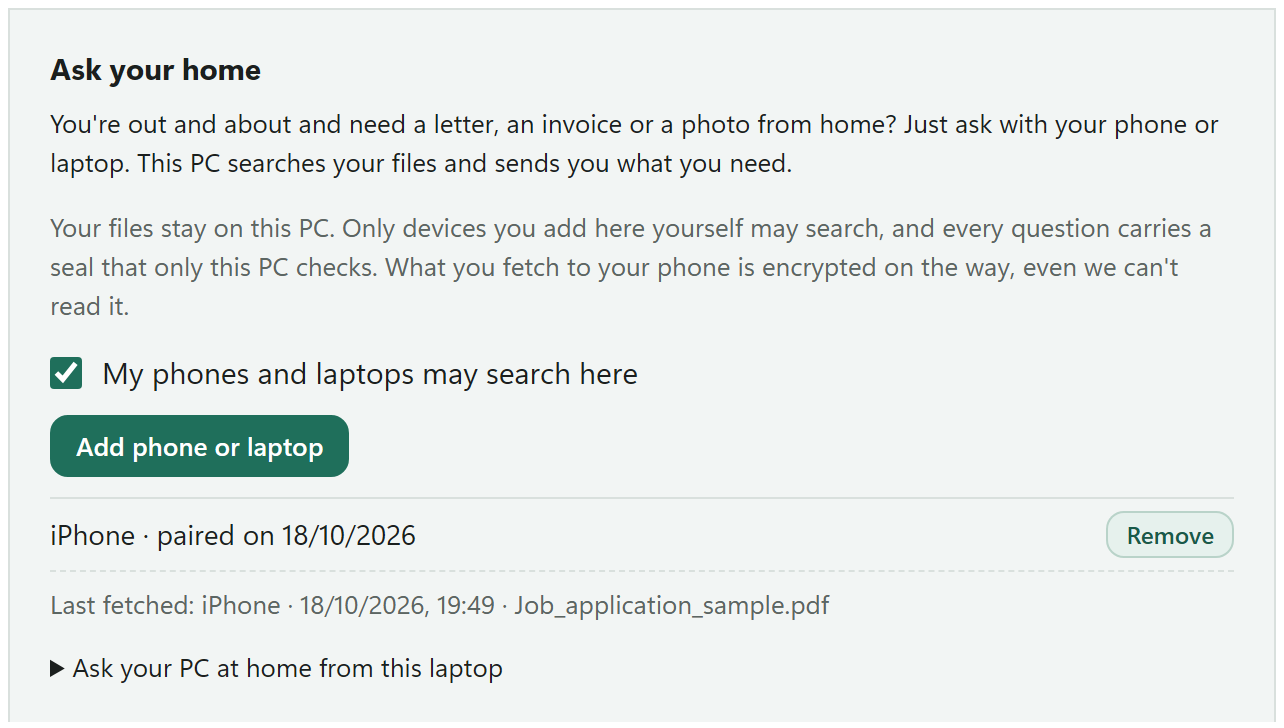
- Click “Add phone or laptop”. A QR code appears, with a code to type in below it. It's valid for 10 minutes and for one device.
- In the app, tap “Account and settings” and “PC at home”. In the card “Ask your home”, tap “Scan QR code with the camera”. The first time, you're asked whether KIplatz may use the camera.
- Point the camera at the code on the screen. The app tells you as soon as the connection is made, and also where to find the search.
Tip
It works without a camera too: type the code in under “Or type in the code” and tap “Connect”.
Find a file and fetch it
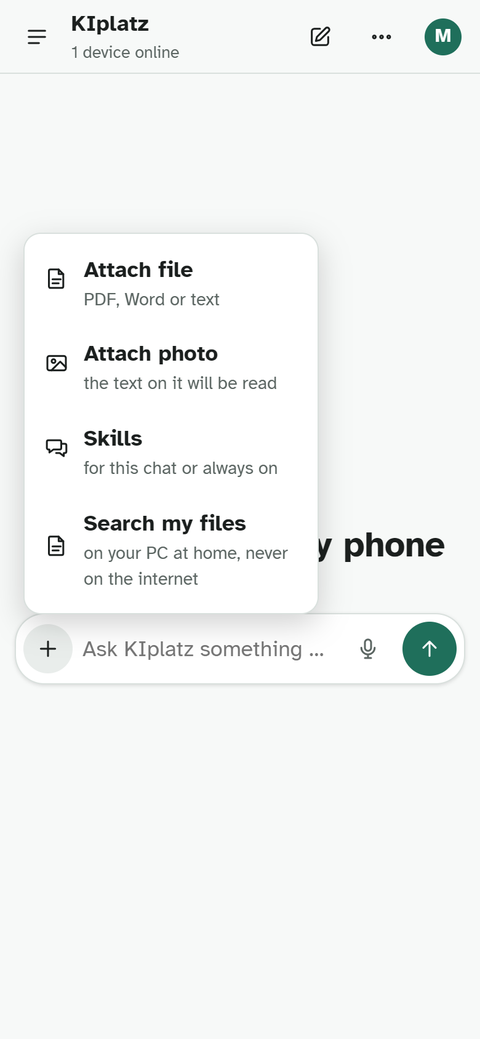
- In the app, tap the plus next to the input field in a conversation and choose “Search my files”. On a PC or laptop, tick the box under the input field. It stays on in that conversation until you switch it off.
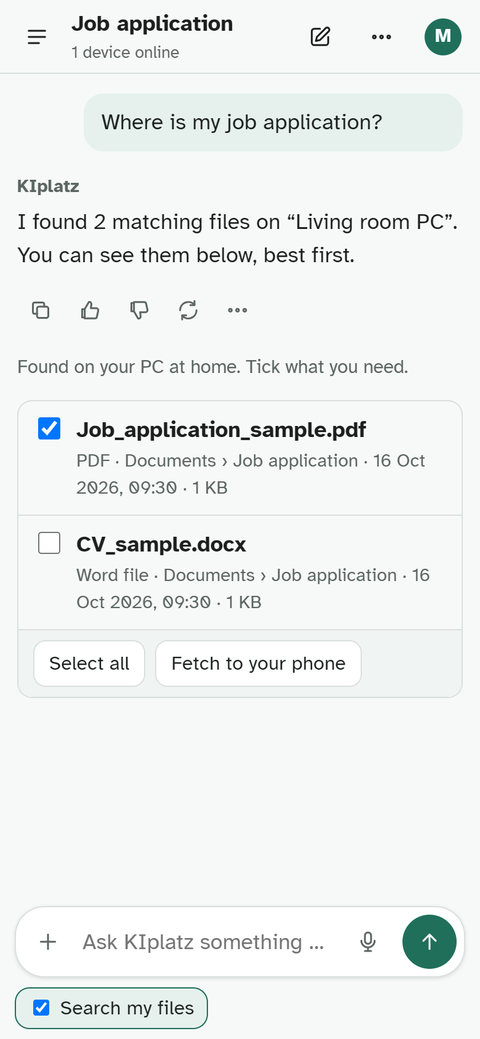
- Ask the way you'd ask a person, for example “Where is my job application?”.
- Your PC shows you the matching files with their folder and date.
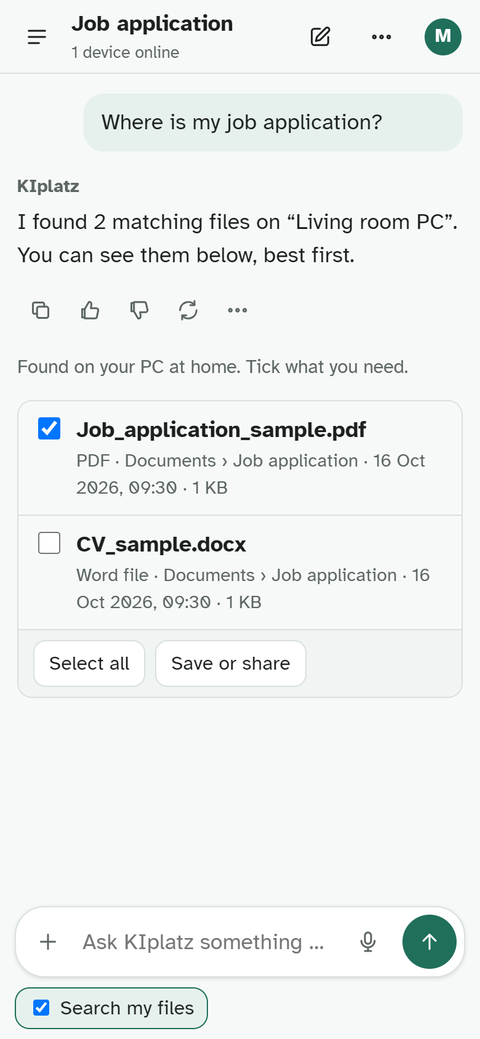
- Tick what you need and tap “Fetch to your phone”. With “Save or share” you store the file or send it on.
Good to know
If you ask for a file without switching on “Search my files”, KIplatz won't search on its own. It tells you where to switch it on, and you ask again.
Where your PC searches
It searches your own folders: Documents, Pictures, Desktop, Downloads, Music, Videos and OneDrive. Your PC looks at the names, folders and dates of the files, not at what's inside them.
If you've connected several PCs, you can ask one of them directly or all of them at once.
Safe and without a cloud
Your files stay on your PC. A file only travels when you fetch it, and then it's encrypted. Our server in Vienna only passes it on and can't read it; once it has been picked up it's deleted there, after 24 hours at the latest.
Only a device you added on your PC yourself may search, and every question carries a seal that only your PC checks. System folders, hidden files, password vaults and key files never show up in the list. On the PC you can see which device fetched which file and when, and that's also where you remove a device. More under Safety.
If something goes wrong
| You see | What helps |
|---|---|
| The app says your PC can't be reached | Your PC at home must be on and online, and KIplatz must be running. |
| The file is too big | Files of up to 60 MB are allowed. |
| The code is no longer valid | A code is valid for 10 minutes. Just have the PC show you a new one. |
| The file you're looking for isn't there | Ask with another word from the file name, or with the folder, for example “invoice in Downloads”. |