
Set limits
You decide when your PC works for the community and how much. Everything for this is on the program's “Share computing power” page, in the card “Limits”.
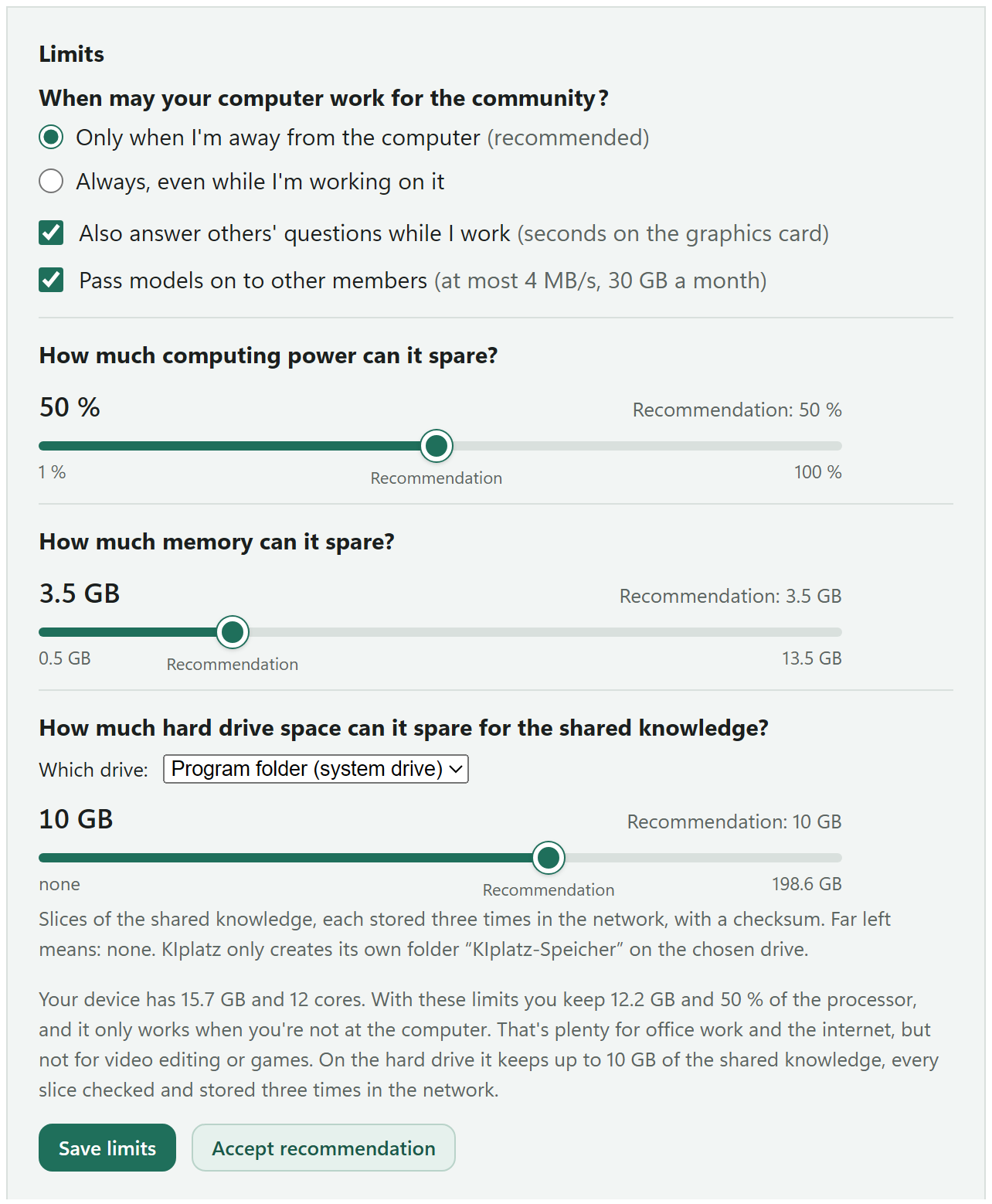
Step by step
- Open “Settings” and the tab “Share computing power” on the left, or use “Program” and “Share computing power” at the top. The card “Limits” is on the right.
- Under “When may your computer work for the community?”, choose one of the 2 options.
- Under “How much computing power can it spare?”, move the slider to the share you want to give, between 1 and 100%.
- Under “How much memory can it spare?”, move the slider to the amount in GB.
- Under “How much space on the hard drive may it give up for the shared knowledge?”, first choose the drive, then move the slider to the amount. All the way to the left means none.
- Read the sentence below. It tells you what's left for you with this choice.
- Click “Save limits”.
Tip
Not sure? Click “Accept recommendation”. The program then fills in what suits your PC. It's only saved once you click “Save limits”.
The switches and sliders in detail
| Setting | What it does |
|---|---|
| “Only when I'm away from the computer” | Your PC only starts working once you haven't used the keyboard or mouse for 2 minutes. |
| “Always, even while I'm working on it” | It works in the background too, as long as the PC is on. |
| “Also answer others' questions while I work” | Only appears on PCs that can answer by themselves. An answer needs the graphics card for a few seconds. |
| Computing power: 1 to 100% | The share of the processor it may give. |
| Memory: in steps of 0.5 GB | The slider only goes as far as leaves you at least 2 GB. |
| Hard drive: drive and amount | Room for slices of the shared knowledge, each stored 3 times in the network. KIplatz only creates the folder “KIplatz-Speicher” (KIplatz storage) on the drive. The suggestion is 5% of the free space, at least 500 MB, at most 20 GB. |
Above each slider it says “Recommendation: …”, and a mark under the slider shows where that is. The suggestion: about a quarter of your memory, 50% computing power on PCs with 8 cores or more, otherwise 25%, and only when you're not at the PC.
Battery and overheat protection
You don't have to set either; both work by themselves. A laptop on battery doesn't work for others. Plug it in and it carries on by itself.
Before every work step, your PC reads the temperature of the graphics card, if the card reports one. From 85 °C it pauses for 60 seconds and then checks again. During that time, the top of the page shows “Heat protection” with the measured temperature.
Stop straight away
“Stop” on the same page ends the work on the spot. “Pause” holds it until you click “Start” again. For the whole community there's also our kill switch: if we press it, no PC gets any more jobs, and your program answers your questions by itself.
Good to know
In the morning, your PC fetches the weather and headlines for you in advance, privately on this PC. To turn that off, go to “Settings”, card “Look up on the internet”, and switch off “Fetch weather and headlines for you in the morning (once a day, when the computer has nothing to do; stays private on this PC)”.
Which jobs your PC does within these limits is under What your PC does.