
Install the program
KIplatz is a Windows program that comes as a ZIP file. It's up and running on your PC in a few minutes, without administrator rights and without an account with a big corporation.
What you need
You need Windows 11. How much your PC does itself depends on its hardware.
| You want to | Your PC needs |
|---|---|
| Ask questions | 4 GB of RAM or more; if your PC is busy, a free PC in the community answers |
| Prepare knowledge | a basic processor and 6 GB of RAM |
| Answer on its own, even offline | a graphics card with 6 GB of graphics memory or more, and 16 GB of RAM |
Good to know
On a Mac, on Linux or on a phone, you ask through the app in your browser. How that works is explained under Ask on your phone.
Download and unzip
- Open the Share computing power page and download the ZIP.
- Unzip it into a folder of your choice.
- In the unzipped folder, double-click “KIplatz” to start it. Windows won't ask you anything.
The program sets itself up in your user folder and puts a shortcut on the desktop and in the Start menu. You can delete the unzipped folder afterwards.
Tip
If you want to be sure, compare the checksum. You'll find it on the download page under “Checksum”, with the build number right next to it.
The first start
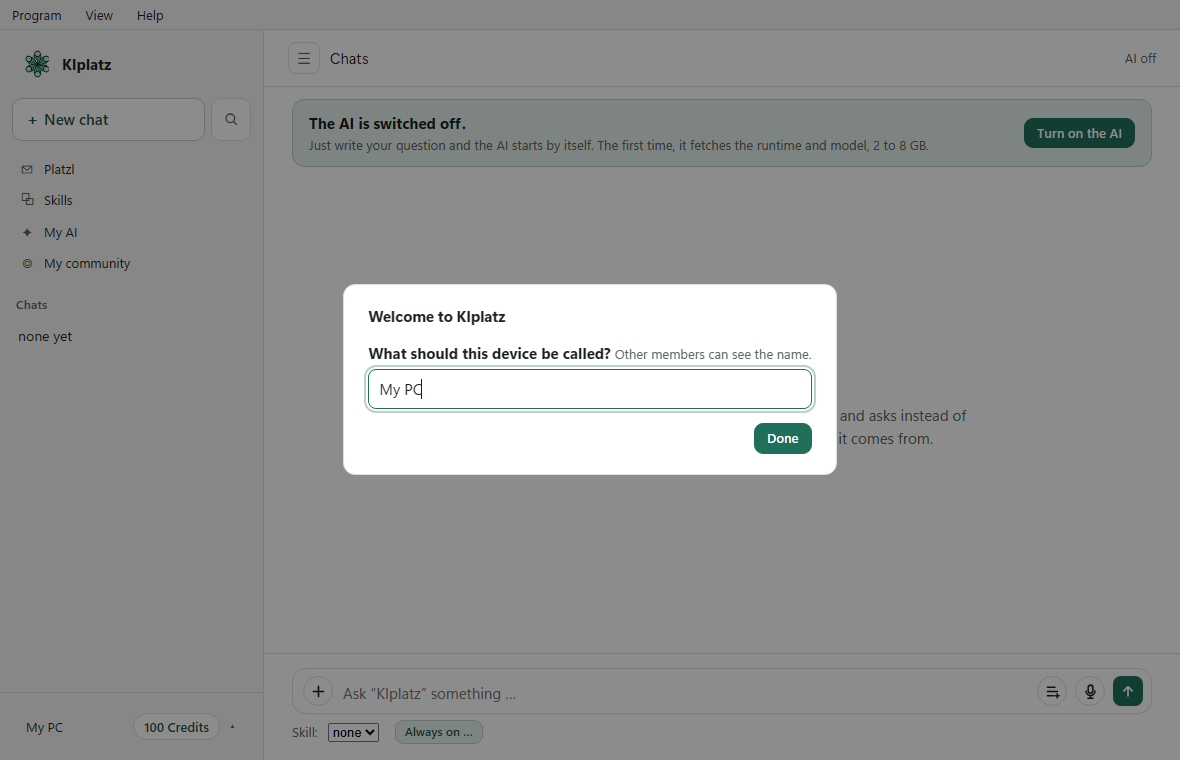
- A window welcomes you and asks “What should this device be called?”. Enter a name of up to 24 characters and click “Done”.
- Read the short note and click “Let's go”.
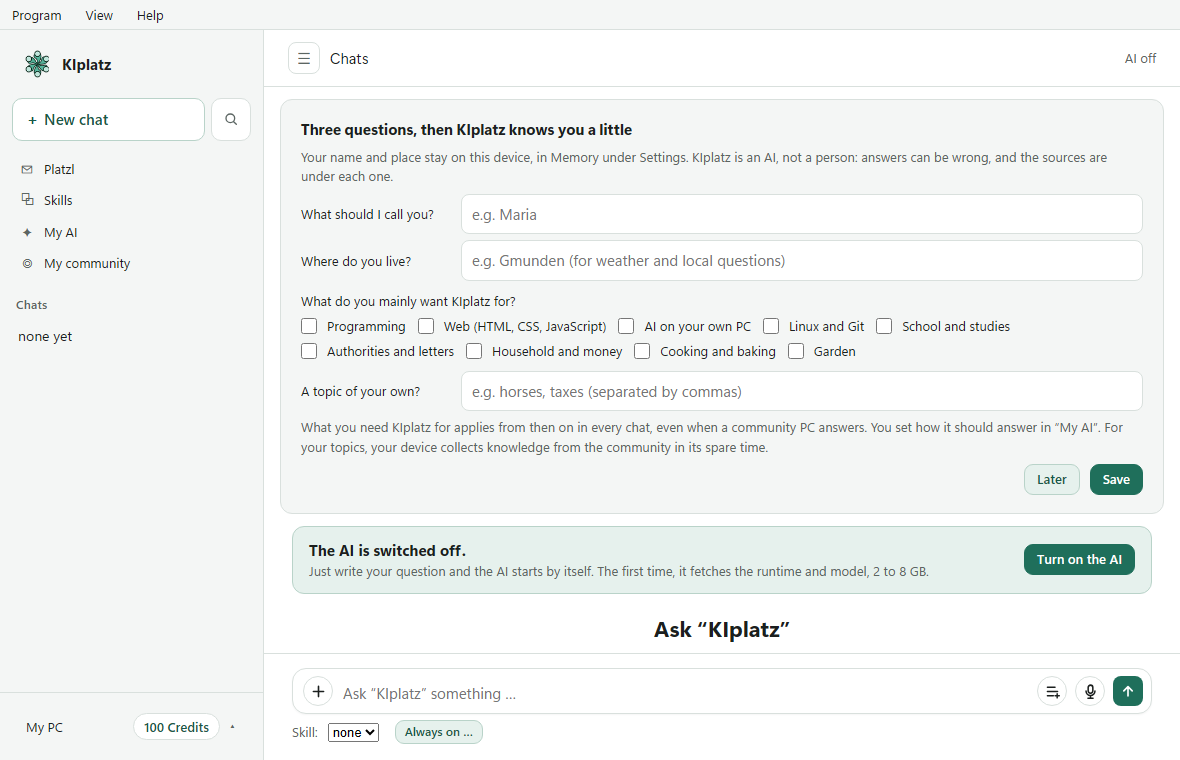
- Above the conversation are 3 questions: what you'd like to be called, where you live and what you mainly need KIplatz for (just tap). Fill them in and click “Save”, or “Later”. You can change all of it under My AI.
The first time, KIplatz also downloads the AI. That takes a few minutes and, depending on your graphics card, is 2 to 8 GB. If your PC isn't powerful enough, a free PC in the community answers your questions.
Careful
Other members can see the device name, for example on the leaderboard, so don't use your full name. Your 3 answers about yourself stay on your PC.
Closing the window and quitting
The X only hides the window; KIplatz keeps running next to the clock. To quit completely, use the “Program” menu and “Quit KIplatz”. Starting with Windows is switched on during setup. You can turn it off in the same menu with “Start automatically at sign-in: on/off”.
It fetches updates by itself, checks their signature and then shows you “New in this version”.
Next steps
- Your first question: Your first question
- From your phone to the files on this PC: Your files from anywhere
- How much your PC may do for others: Set limits
- One account for every part of the community: Create an account and sign in