
What the program can do
KIplatz is an AI assistant for Windows 11 with its own window: your conversations on the left, the answer on the right. Here each feature is described in 1 or 2 sentences, with a link to the matching guide.
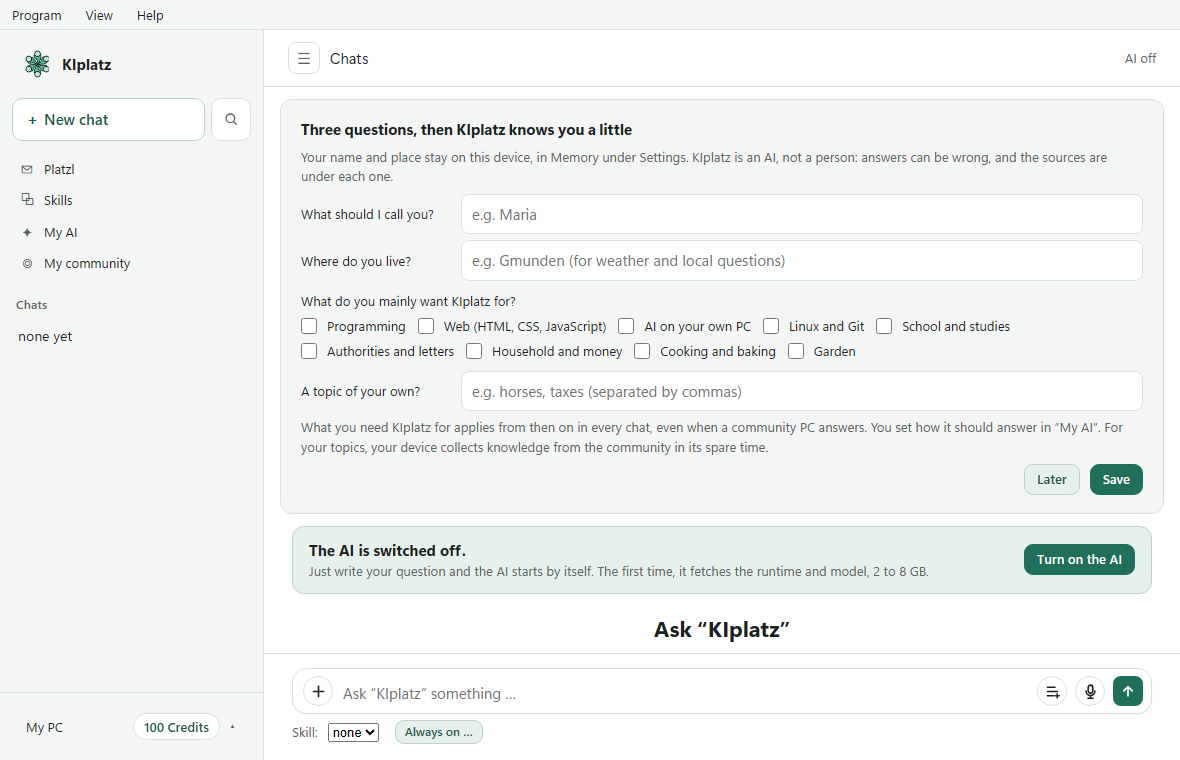
From the input field to the morning briefing
You type in the input field at the bottom and press Enter to send; Shift + Enter starts a new line. If an answer is getting too long, the small square “Stop answering” stops it.
- Files and images: the “+” in the input field attaches a file, an image, a folder or a screenshot. Everything is read on your PC.
- Speaking and reading aloud: press the microphone, speak, press it again, and your words appear in the input field. The speaker under an answer reads it aloud.
- Ask about selected text: select text anywhere, press Ctrl + Space, and it's ready in quotation marks.
- Memory: write “Remember: …”, and the AI knows it from then on. The list stays on your PC.
- Create skills: short instructions the AI follows in a conversation. 10 templates are ready to use.
- Morning briefing: every day at a time you choose, the weather where you live and 5 headlines, read aloud if you like.
- Ask on your phone: an app you open in your browser at kiplatz.at/app and add to your home screen.
- Your files from anywhere: when you're out, you ask on your phone, for example “Where is my job application?”, and your PC at home searches your folders. Whatever you tick comes to your phone encrypted, with no cloud in between. The feature is called “Ask your home”.
- Correct an answer: give it a thumbs down and write what is right. Your PC follows it straight away.
- Asking good questions: say it the way you would to a person. If something important is missing, the AI asks.
Organising conversations
Right-click a conversation in the bar to get “Rename”, “Pin”, “Move to a project …”, “Archive”, “Save as text file” and “Delete”. Deleted conversations go to the recycle bin in your data folder. With “Import chats …” you can bring in histories from other AI programs or from a text file.
The left bar
Four areas sit fixed at the top, with your chats below them. Your device name and your credits are at the very bottom left.
| Entry | What you'll find there |
|---|---|
| “Platzl” | the community forum, right inside the program |
| “Skills” | your own instructions, the templates from KIplatz and skills from Platzl |
| “My AI” | what you need KIplatz for and how it should answer you (My AI) |
| “My community” | tabs on the left: “Overview” (your credits, your daily report, who's in, leaderboard, shared storage), “Account and devices” (your account, invite a device, “Ask your home” with the QR code for your phone, your data on the server, “Leave the community”), “Check answers” (answers other members want confirmed; 2 credits per check), “Leaderboard” (every PC that has worked for others, and the teams), “Wiki” and “Feedback” (error of the week, feedback on answers) |
| “Chats” and “Archive” | your conversations; a click on “Archive” shows the archived ones |
| your device name at the bottom left | a short menu with “Settings”, “About KIplatz” and “Quit KIplatz” |
The tabs under “Settings”
| Tab | What you'll find there |
|---|---|
| “General” | appearance, language, starting at sign-in, taking over chats, the shortcut Ctrl + Space |
| “AI and answers” | the AI for asking questions, who answers your questions, looking things up on the internet, morning report |
| “Share computing power” | Start, pause and stop, plus when and how much your PC may work for others (Set limits) |
| “Knowledge” | the sources KIplatz knows: websites you read privately, your own folders, local knowledge, with a search |
| “Privacy” | your memory, learning from your questions and “Where this program connects to”: every connection since the program started, where to and what for, without contents |
| “For advanced users” | let other programs ask KIplatz, KIplatz on the home network |
| “Help and maintenance” | diagnostic report, data folder, “Check for updates”, remove program |
The menus at the top
| Menu | Entries |
|---|---|
| “Program” | “Chats”, “Share computing power”, “Knowledge”, “My community”, “Leaderboard”, “Wiki”, “Settings”, “Import chats …”, “Start automatically at sign-in: on/off”, “Hide window (keeps running in the background)”, “Quit KIplatz” |
| “View” | “Dark window: on/off”, “Sidebar on/off (Ctrl+B)” |
| “Help” | “House rules”, “Check for updates”, “Report a problem”, “About KIplatz” |
Good to know
The X at the top right only hides the window; KIplatz keeps working down by the clock. To quit completely, choose “Program” and then “Quit KIplatz”, or use your device name at the bottom left.
KIplatz fetches updates by itself, checks their signature and then shows “New in this version”. “Report a problem” sends us a report, without your questions.